

Resolving Conflicts Between ServiceTitan Reporting and QuickBooks Online Balances

When ServiceTitan Revenue and QuickBooks Deposits Don't Align
In our experience supporting home service businesses, getting ServiceTitan reports to match QuickBooks Online balances is often the most stressful part of month-end close for any HVAC back office. You run your revenue reports in your field service dashboard, and the numbers look fantastic. But when you switch over to the accounting software to reconcile, the actual bank deposits cleared in the system tell a completely different story. The immediate panic sets in: did a payment fail? Did a technician delete an invoice? Or is the software just broken?
The hardest part is deciding exactly where to begin the reconciliation investigation at month-end. Most bookkeepers waste hours blindly clicking between screens, hoping to spot the missing transaction. Here is the thing our team has learned over the years: these discrepancies are rarely random software bugs. They are almost always predictable mapping errors or natural timing issues. If you want to stop the month-end madness, you need a structured approach to contractor bookkeeping and accounting, combined with proper business systems and software optimizations to ensure your data flows smoothly from the field to the bank.
Workflow Mismatches vs. Software Glitches: Diagnosing the Disconnect
The problem: When numbers do not match, the immediate reaction is to blame the software. Back-office teams often assume the integration is broken, leading to frustration and manual double-entry that ruins data integrity.
The cause: Field service management (FSM) to accounting sync issues are usually predictable workflow mismatches tied directly to the HVAC dispatch cycle. An HVAC business moves fast. Technicians add items to invoices in the field, take credit cards on tablets, and close out calls in real-time. But accounting software requires strict rules, mapped accounts, and cleared bank deposits to recognize that same revenue.
Understanding the Data Flow
To diagnose the disconnect, you have to separate unbatched credit card payments from unmapped emergency service codes. An unbatched payment means the money is simply on its way. An unmapped service code means the invoice physically cannot leave the FSM because the accounting software does not know where to put the revenue. Mastering QuickBooks and field service software integration basics is about understanding these distinct pathways.
The solution: Approach the sync as a rigid workflow process rather than a guessing game. Because trade-specific bookkeeping requires deep expertise in field service management integrations, knowing exactly how a dispatch converts to an invoice makes diagnosing these mismatches significantly faster. When you know what to look for in the QuickBooks Online Bank Feed, you can spot exactly where the workflow broke down.
The Impact of 24-to-48-Hour Credit Card Batching Delays
One pattern we see often at Contractor in Charge is a fundamental misunderstanding of how credit card processors handle funds. When a technician swipes a credit card in the field, ServiceTitan records that revenue immediately. The dashboard updates, and the business owner sees a successful sale.
However, credit card processors typically batch these payments on a 24-to-48-hour delay before depositing them into your actual bank account. If a transaction happens on a Friday afternoon, it might not hit the QuickBooks Online Bank Feed until Tuesday morning. This creates a natural, unavoidable timing discrepancy between your real-time FSM reports and your delayed bank deposits.
Identifying Transactions in Transit
To stop chasing ghosts during month-end close, you must learn to identify which transactions are stuck in transit versus which ones have actually failed to sync. Matching dates correctly is the secret.
• ServiceTitan Dashboard — Transaction Status: Payment recorded on 10/31 — Action Required: Verify the batch report in the FSM.
• Merchant Processor — Transaction Status: Processing / Pending on 11/01 — Action Required: Wait for the funds to clear the merchant account.
• QuickBooks Online Bank Feed — Transaction Status: Deposit cleared on 11/02 — Action Required: Match the batched FSM total to the delayed deposit.
If you run a revenue report strictly for October, that Friday payment will show up in the FSM but will be entirely missing from your October bank feed. Recognizing this delay prevents you from artificially forcing a sync and creating duplicate entries.
Stranded Revenue: How Unmapped Pricebook Items Block Syncing
The problem: You check your bank feed and realize an entire day's worth of invoices never made it into your accounting software, even though the payments cleared the bank.
The cause: Improperly mapped pricebook items will cause invoices to fail to export entirely. If an HVAC technician adds a newly created service code—like a specific blower motor replacement—to an invoice, but that code has not been mapped to an income account in your general ledger, the FSM will block the sync. The software refuses to send data if it does not know exactly where it belongs. This leaves the revenue completely stranded in the FSM, creating a massive gap in your accounting software.
The solution: You must regularly audit the pricebook for unmapped or newly added service codes. During a busy winter season, one home service company came to us realizing they needed reliable bookkeeping and accounting services because unmapped invoices were constantly falling through the cracks. By bringing in our dedicated support team at Contractor in Charge, their assigned accountant provided routine bookkeeping and accounting services, auditing the pricebook weekly, answering questions, and providing the guidance needed to stop mapping errors before they stranded revenue. Checking the unexported invoice report against the QuickBooks Online Bank Feed ensures every dollar makes it to the general ledger.
High-Volume Stress: How Seasonal Surges Expose Hidden Sync Errors
Accounting discrepancies do not happen in a vacuum—they multiply when your dispatch board is overflowing. A sudden spike in daily transactions naturally increases the likelihood of multi-day batching delays. When you are processing triple the normal volume, merchant processors take longer to clear funds.
Our accountants see this consistently during the peak summer AC season when high transaction volume exposes sync delays. With extreme heat driving relentless HVAC dispatches, technicians are moving fast. The rush of emergency calls often leads to the use of unmapped "miscellaneous" or "emergency service" codes just to close out the ticket and get to the next house. Every time one of those unmapped codes is used, an invoice gets stranded.
The psychological stress on the back office trying to close the month during these overwhelming dispatch periods is immense. Staring down a massive discrepancy while the phones are ringing off the hook leads to burnout and sloppy data entry. We highly recommend setting up daily micro-reconciliations during busy seasons. By checking the FSM batch reports against the QuickBooks Online Bank Feed every single morning, you catch stranded invoices and delayed batches while they are small, manageable issues—preventing a massive, stressful month-end disaster.
The Month-End Reconciliation Checklist for HVAC Bookkeepers
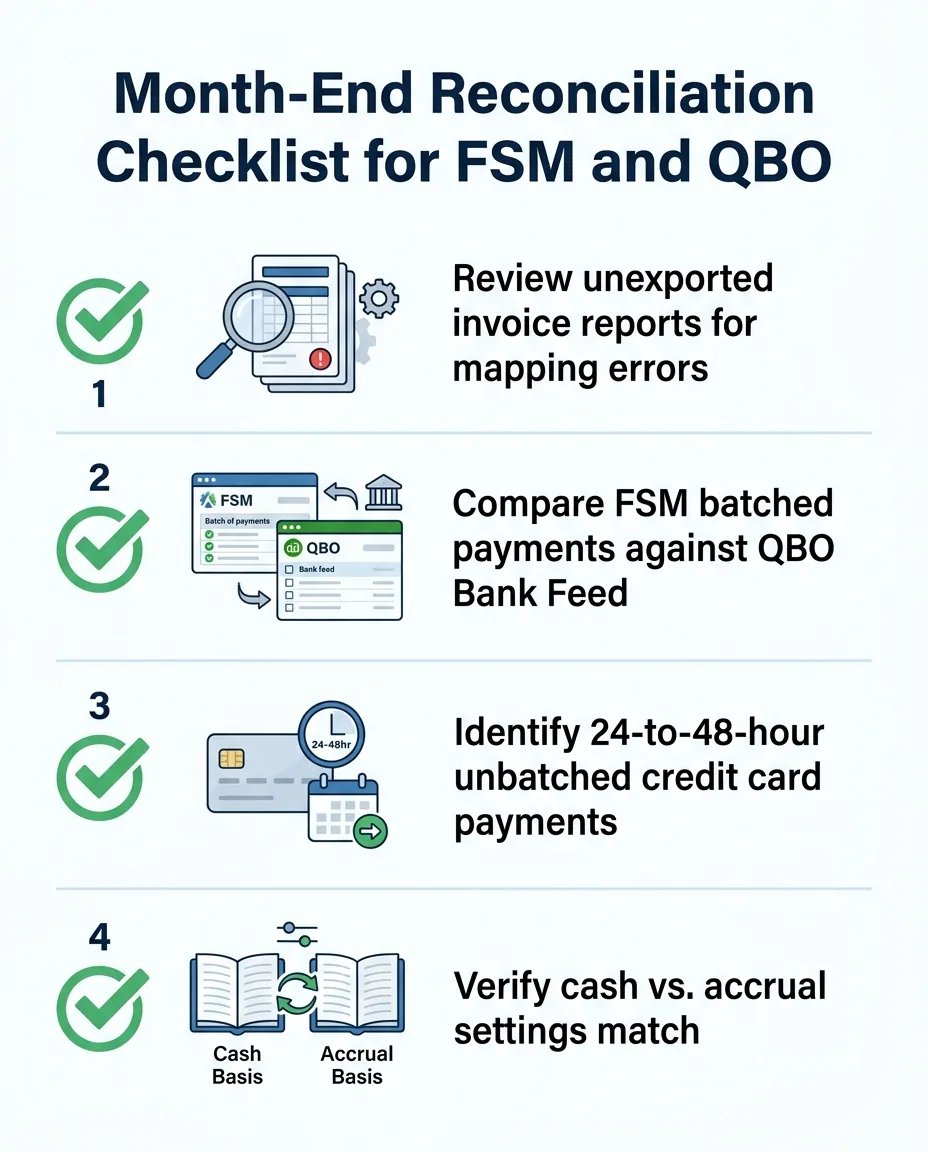
To remove the guesswork from your monthly close, you need a rigid, repeatable process. Following a sequential checklist ensures you catch every mapping error and timing delay before you finalize your books. Clean, reconciled data is the absolute foundation of performance accounting, which relies on accurate numbers to generate real business insights.
1. Review the unexported invoice report: Log into ServiceTitan and pull the report for invoices that failed to export. Look for any unmapped pricebook items, missing customer details, or special characters in the invoice fields. Fix these errors and push the export.
2. Compare batched payments: Pull the batched payments report in the FSM for the specific date range and compare those totals directly against the deposits showing in the QuickBooks Online Bank Feed.
3. Identify unbatched credit cards: Look for any credit card payments taken on the last two days of the month that are still pending with the merchant processor. Note these as timing differences for the following month.
4. Account for processor fees: Ensure that the gross batch amount in the FSM matches the net deposit in the bank feed plus the merchant processing fees.
5. Verify accounting methods: Double-check that your cash versus accrual settings match perfectly across both platforms. A mismatch here will artificially inflate or deflate your revenue reports, making reconciliation impossible.

Leveraging Clearing Accounts to Bridge the FSM-to-Accounting Gap
If you want to handle timing differences smoothly, relying on a direct-to-bank sync is often a mistake. Intuit highly recommends using a clearing account for field service management integrations. A clearing account is a temporary holding account in your general ledger that acts as a bridge between your FSM and your actual bank account.
Here is how it works: instead of ServiceTitan sending a payment directly to your checking account register, it sends the payment to the "ServiceTitan Clearing Account." When the actual funds hit your QuickBooks Online Bank Feed 48 hours later, you match that bank deposit against the funds sitting in the clearing account. This method beautifully isolates merchant processor fees from your gross revenue, keeping your income statements perfectly accurate.
Properly managing these accounts requires highly organized, accurate operations. During a hectic summer season, one client came to us struggling with the difficulty of managing calls, dispatching, and accounting operations all at once. By partnering with our dedicated team at Contractor in Charge to handle their accounting with strict organization and responsiveness—including setting up proper clearing accounts—they finally received accurate numbers and valuable feedback, turning chaos into a trusted accounting partnership. When the clearing account zeros out at the end of the month, you know your sync is flawless.
Frequently Asked Questions About ServiceTitan and QBO Syncing
Why doesn't ServiceTitan match QuickBooks?
ServiceTitan often doesn't match QuickBooks due to natural timing delays in credit card batching. When a payment is processed in the field, it takes 24 to 48 hours to hit your actual bank account. Additionally, this mismatch can stem from unmapped pricebook items that prevent the invoice from exporting out of the FSM entirely.
How do I reconcile ServiceTitan payments in QBO?
The most effective way to reconcile ServiceTitan payments is to use a clearing account to hold funds until they officially clear the bank. Once the deposit appears in your bank feed, you match the batched FSM total to the bank deposit, making sure to account for any merchant processor fees deducted along the way.
What causes sync errors between ServiceTitan and QuickBooks Online?
Sync errors are frequently caused by changes made to the chart of accounts without updating the corresponding mapping in the FSM. They can also be triggered by simple data entry mistakes, such as using special characters (like ampersands or emojis) in customer names or invoice fields, which the accounting software rejects.
How do I fix a batch discrepancy in ServiceTitan?
To fix a batch discrepancy, you must first isolate the specific date the error occurred rather than looking at the entire month. Run a detailed batch report in the FSM and compare the individual transaction IDs against the deposit details in your accounting software to find the exact payment that failed to transfer.
Should I use cash or accrual basis for the sync?
You must ensure both systems are set to the exact same accounting method to prevent artificial reporting mismatches. If your FSM reports on an accrual basis but your accounting software runs on cash basis, your numbers will never align. Always consult with a trade-specific bookkeeper to determine the best setup for your specific business model.
Restoring Confidence in Your Monthly Financial Close
Closing the books should not feel like an impossible puzzle. When you utilize a clear, sequential troubleshooting checklist, you remove the guesswork from month-end reconciliation entirely. By understanding that these discrepancies are not random glitches, but rather solvable workflow processes—like unmapped codes or delayed batches—you regain total control over your financial data.
If your internal team is constantly overwhelmed by stranded revenue and messy bank feeds, it is time to stop fighting the software. Identifying the exact source of a discrepancy is straightforward when you have the right systems in place. Explore professional business systems and software optimizations to align your FSM and accounting platforms, and get the expert support you need to trust your numbers again.